1. What Vela does
Roster every branch in one place. Everyone can open each branch's schedule.
You cannot put in someone who is on leave, or one person at two branches at overlapping times.
A day whose shifts do not cover opening hours gets an orange "Gap" mark.
Set how many days off each role gets a month, and how many people may be off at once.
Staff can spend saved days to go past their monthly quota.
Look back at what was approved or rejected, and who pressed the button.
Install it on the home screen. This month's shifts open even with no signal.
Each person picks their own language and light or dark look.
Vela will draft the whole month from your rules. It is being tuned with real shops first.
2. Install Vela as an app
Vela is a web app: you install it straight from the browser, with no App Store or Play Store. Once installed there is a Vela icon on your screen, it opens full screen like any other app, and it updates itself every time you open it.
- Open your shop's link in Safari
- Tap Share (the square with an arrow pointing up). If you cannot see it, tap ••• first
- Choose Add to Home Screen, then tap Add
- Open it from the icon and log in once more (the app keeps its login separately from Safari)
- Open your shop's link in Chrome
- Tap the ⋮ menu at the top right
- Choose Add to Home screen, then Install
- Samsung Internet: menu ☰ › "Add page to" › "Home screen"
- Chrome / Edge: click the install icon at the end of the address bar, then Install
- No icon? Chrome: menu ⋮ › "Cast, save and share" › "Install page as app" · Edge: menu ··· › "Apps" › "Install this site as an app"
- Safari on a Mac: File menu › "Add to Dock"
Remove it like any other app. Your shop's data is not lost, because it lives in Vela, not on the device. Admins can send staff the shop's link together with this page (velaroster.com/help-en#install) to follow.
3. For owners & admins
Getting started
Once you have signed up and confirmed your email, your shop gets its own link, such as yourshop.velaroster.com, and a free 30-day trial with everything included. A new shop starts empty. Work through these in order:
- Add branches and opening hours Shop setup › Branches & hours — how
- Set up job roles Manage staff › Job roles — a new shop has a single role, "Staff". Rename it or add more. How
- Set leave rules (if you have any) Manage staff › Staff leave — how
- Add your staff Manage staff › People, then send each person the shop's link and their temporary password — how
- Make a second admin. If your only admin is locked out, nobody can reset staff passwords, so Vela keeps reminding you until there are two.
- Start rostering Rostering › By hand — how
The Management menu
Admins see an extra Management heading in the menu:
- Requests
- Approve days off and other requests
- Rostering
- Roster shifts, and see who is off when
- Manage staff
- People, job roles and leave rules
- Shop setup
- Branches and opening hours
- Billing
- Plan, invoices and telling us you have paid
The red number on a tab is how many requests are waiting.
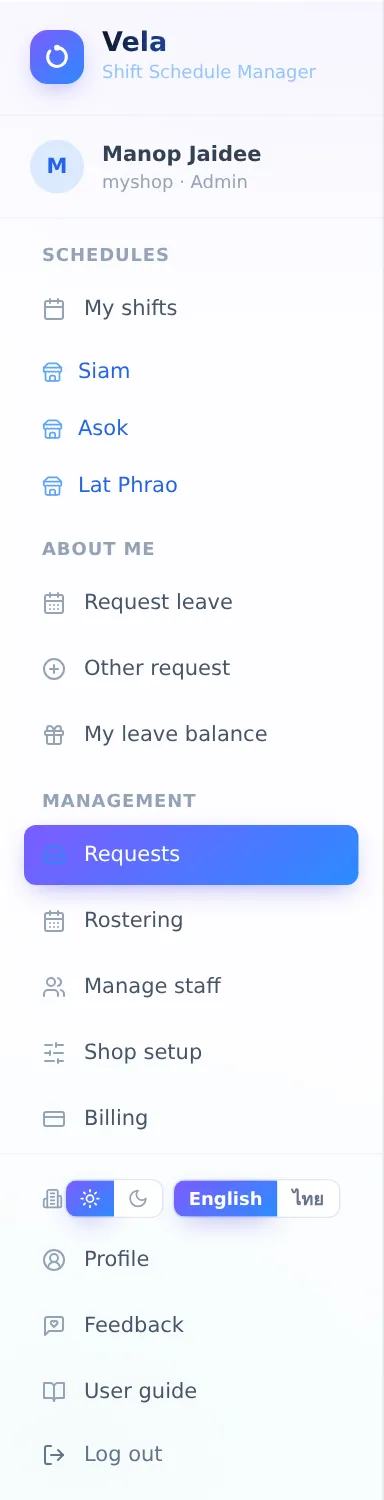
Requests › Leave
- Waiting requests are grouped by person and date range. Press Approve / Reject one day at a time, or Approve All / Reject All for the whole request.
- If approving would go over the role's quota, Vela asks you to confirm first.
- The yellow "Days with too many people off" box lists days when more people in one role asked for the same day than you allow, counting both approved and waiting requests. Talk to whoever asked for the fewest days first — they are the easiest to move.
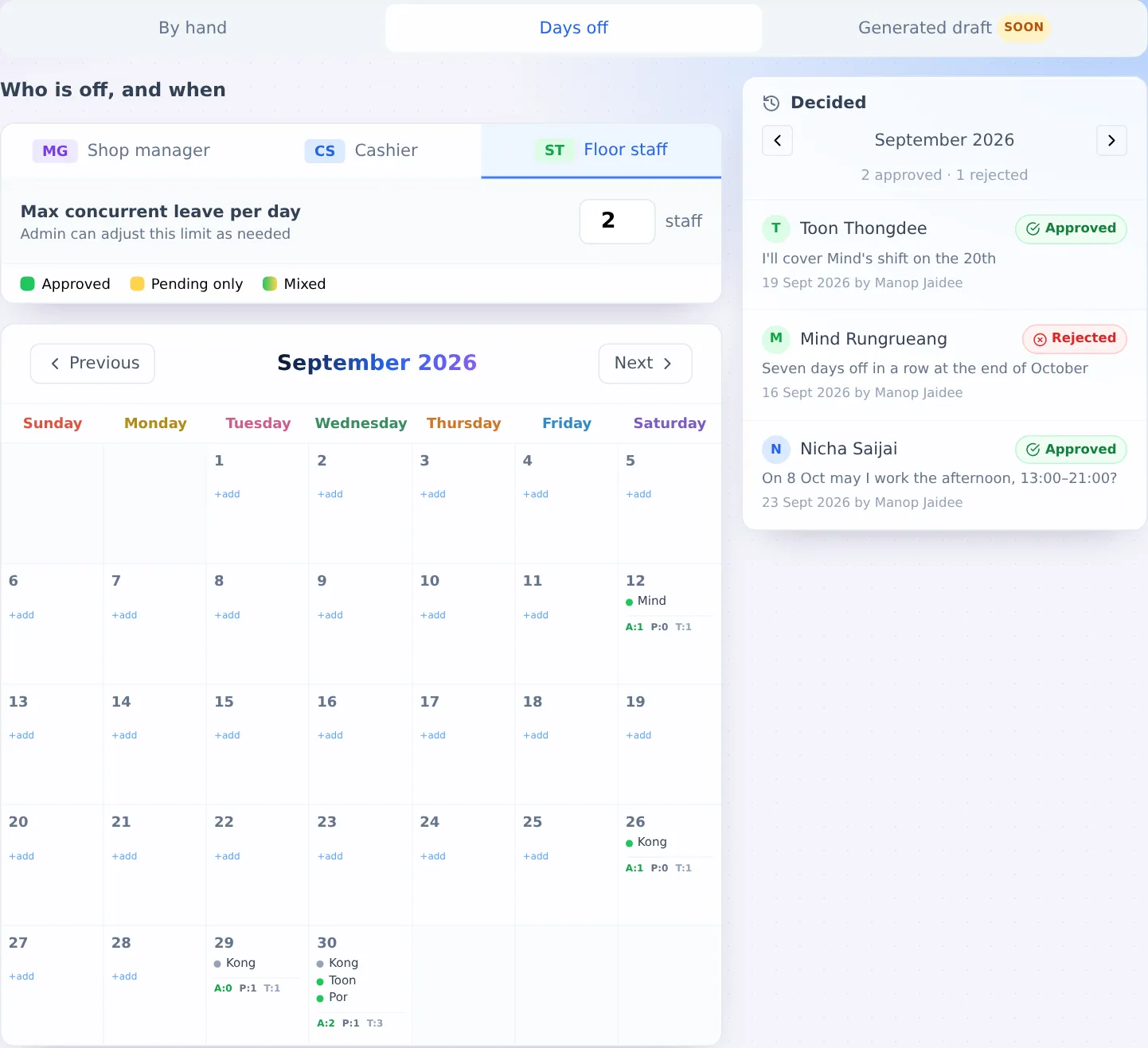
- The Decided panel on the right (below, on a phone) shows what was approved or rejected, for whom, on which day and by whom. Step through the months with the arrows.
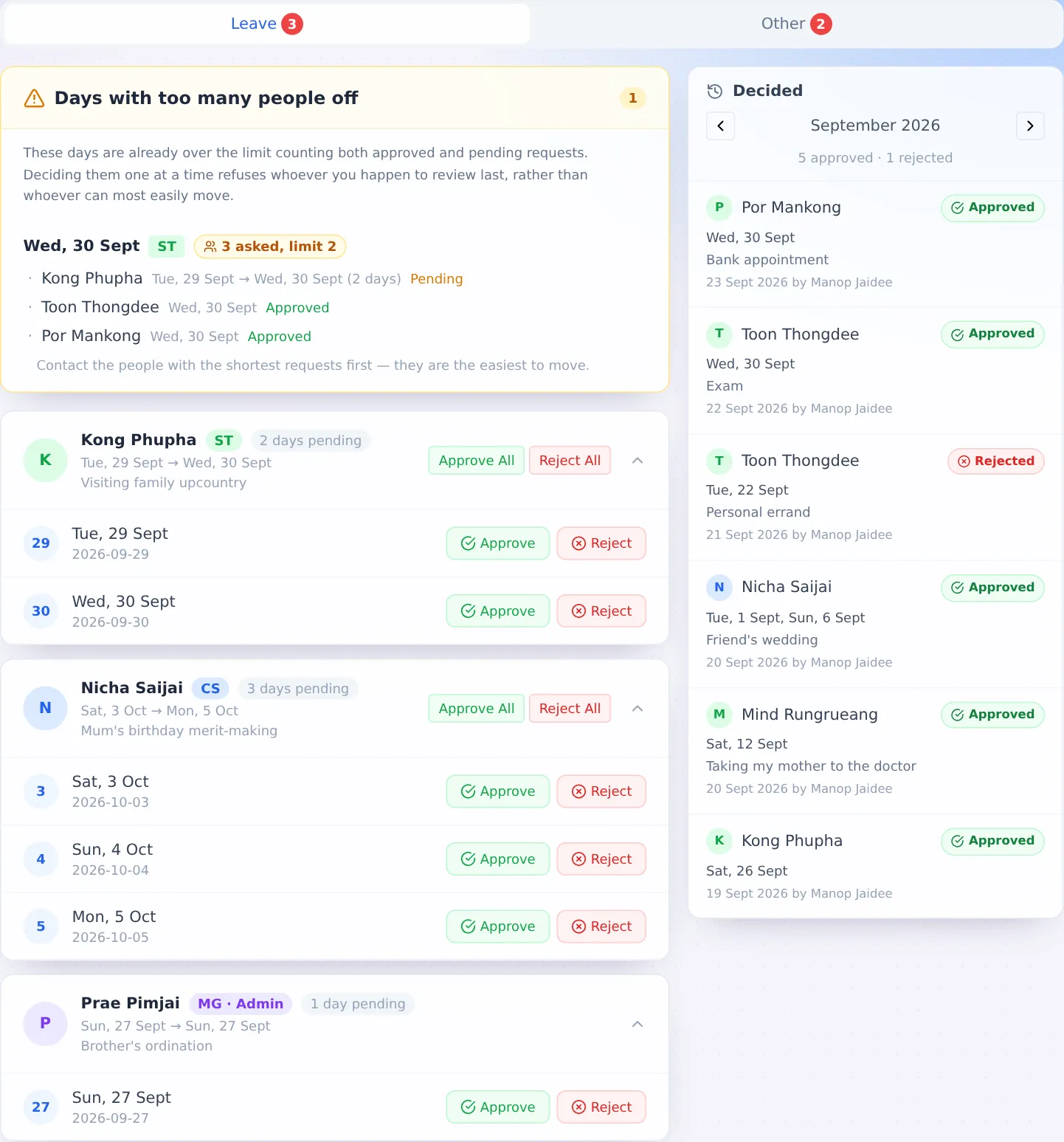
Requests › Other
Free-text requests from staff. Read them, then press Approve or Reject. If a request means changing the roster, make the change in Rostering › By hand (Vela does not move shifts by itself).
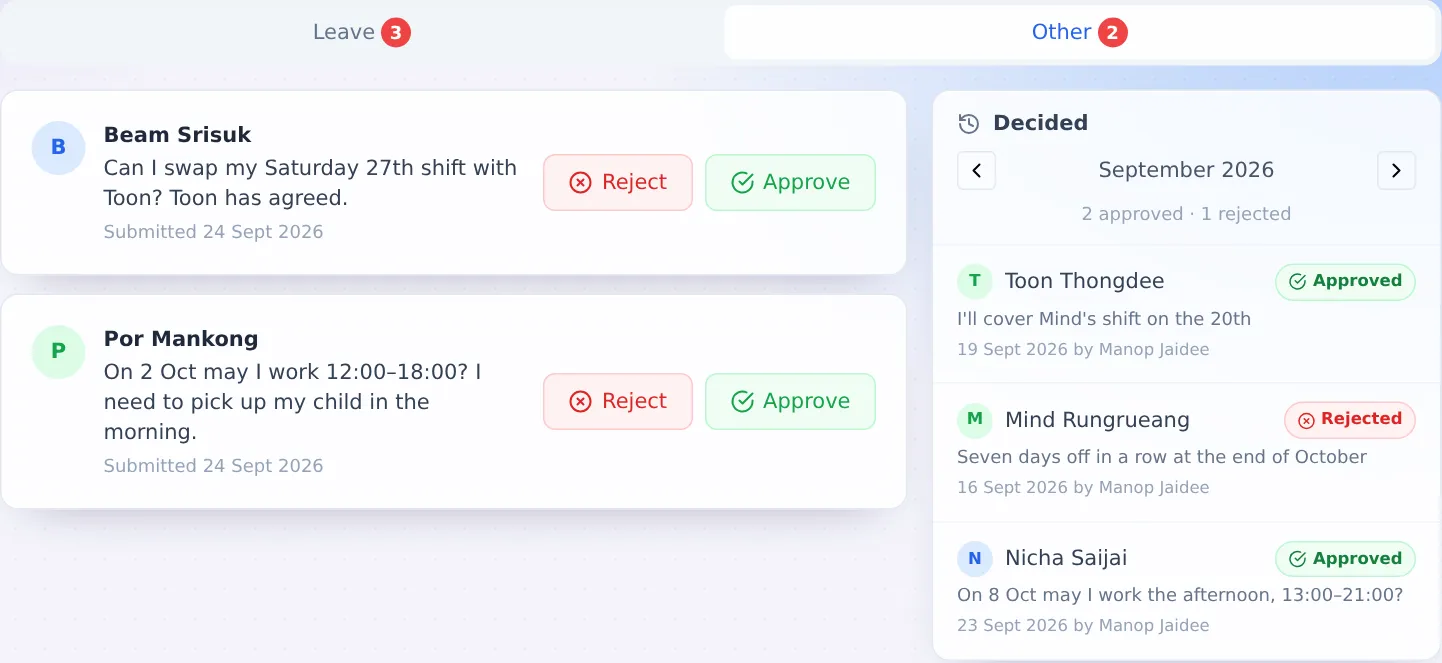
Rostering › By hand
- Pick a branch at the top. Below the picker are that branch's opening hours.
- Tap a day to roster. The window for that day opens.
- Press Add staff member and pick the person and the shift (add as many rows as you need). If the time you want is not listed, press Add Custom Time Slot.
- Press Save. The shifts appear on the calendar at once, and staff see them in their own schedule.
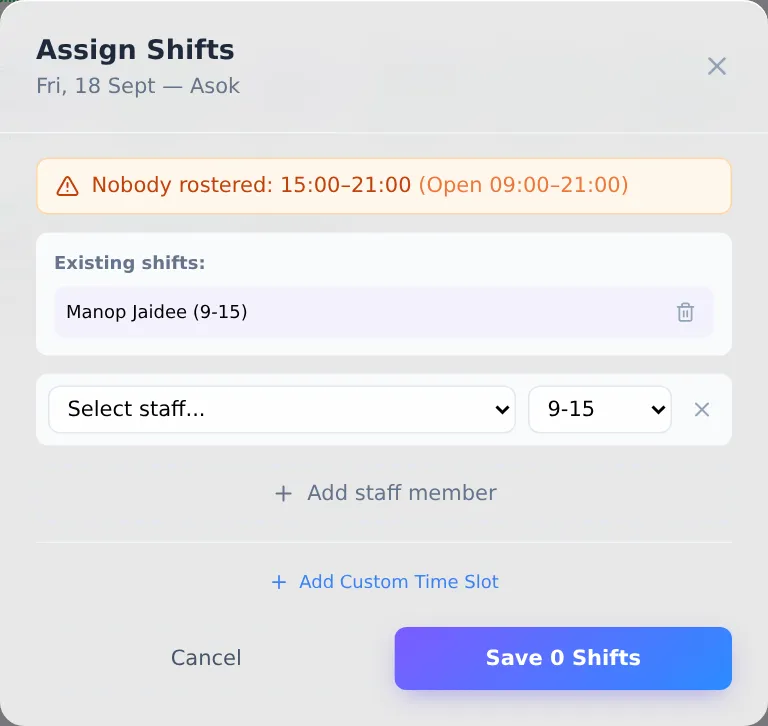
- Delete a shift from that day's window (the bin button).
- The Decided panel on the right holds the other requests, such as shift swaps and cover, so you can roster without switching to the Requests page.
- Rostering › Generated draft Coming soon Vela will propose a whole month for you to check before using it. Until then, roster on the "By hand" tab as usual.
Rostering › Days off
- A calendar of who is off when, one job role at a time. Pick the role from the tabs at the top.
- Each day shows who is off, coloured by status (approved, pending only, or mixed), and counts: A = approved, P = pending, T = total.
- Adjust the Max concurrent leave per day for the role you are looking at, right here.
- Tap a day to approve, reject, or Revoke leave that was already approved.
Manage staff › People
- Search by name, employee ID or email.
- Buttons at the end of each row: pencil = edit · key = set a new password for someone who forgot theirs · bin = remove someone who has left.
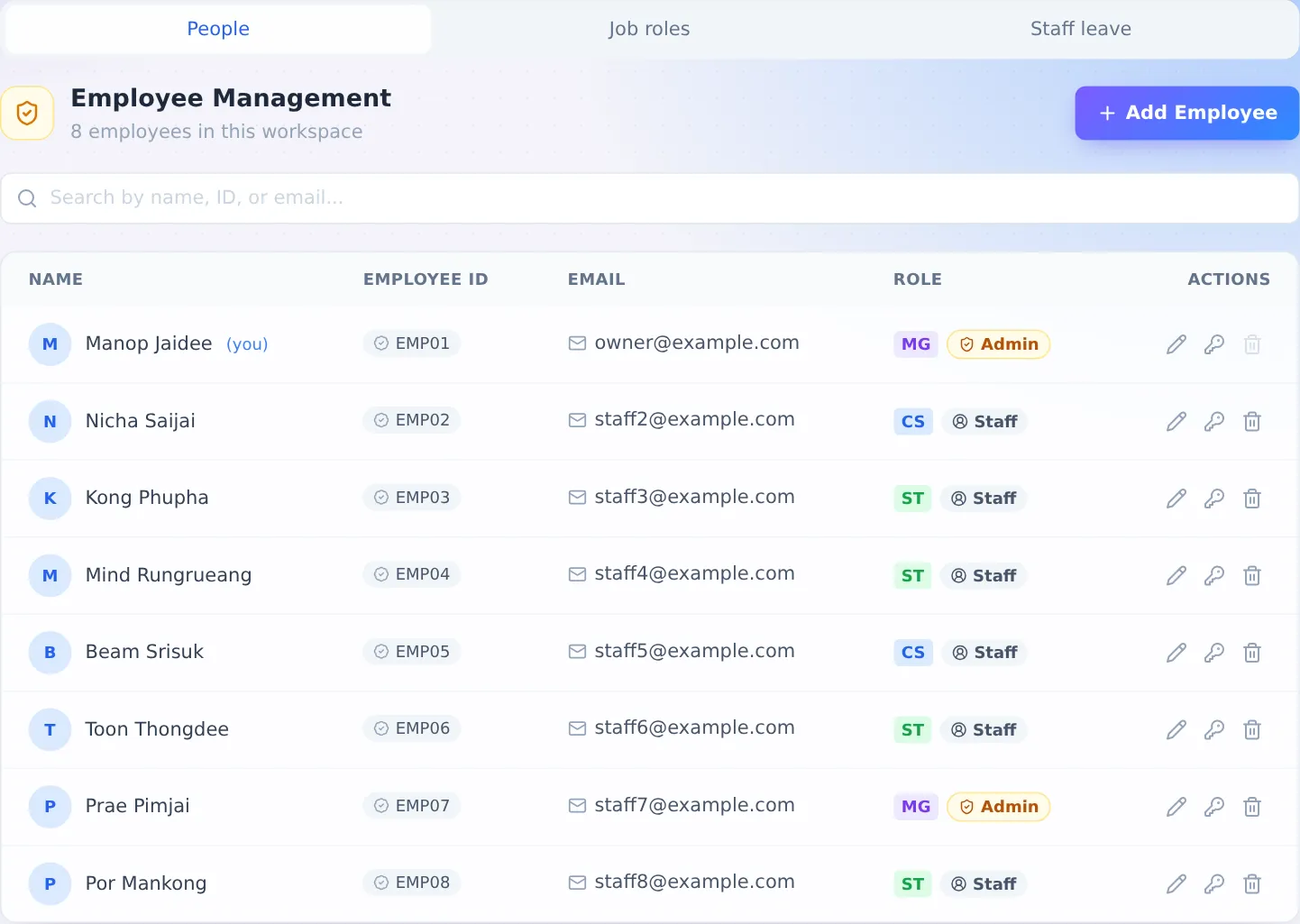
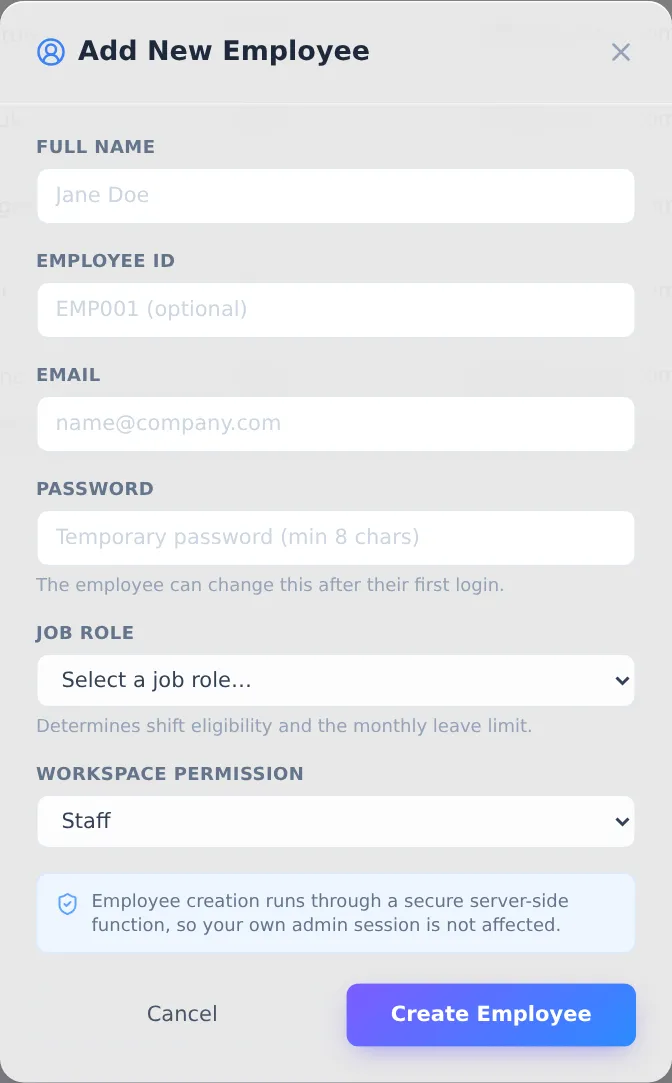
Adding someone: press Add Employee, fill in their name, email, employee ID (optional), a temporary password, job role and workspace permission (Staff or Admin), then send them the shop's link and the temporary password.
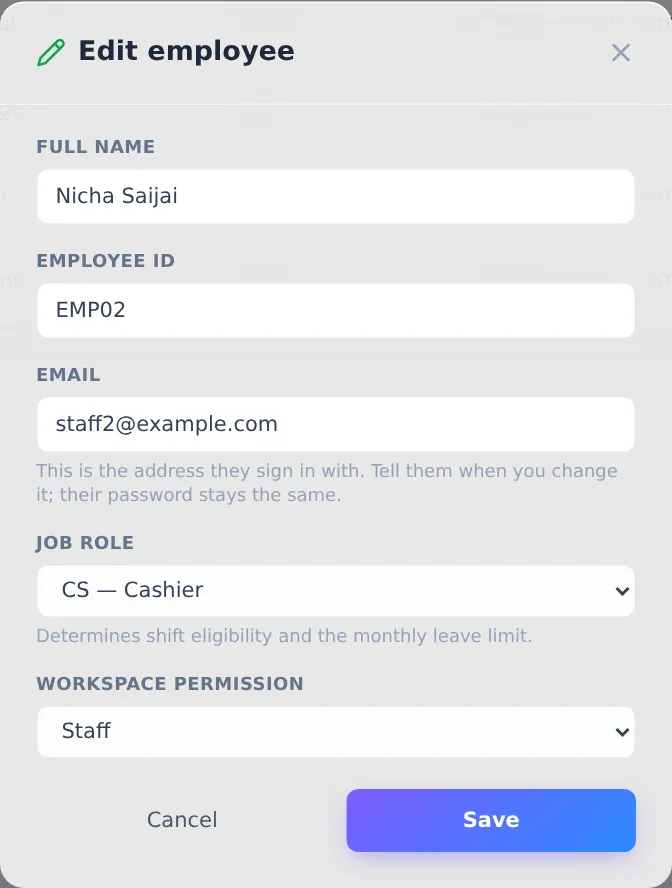
Editing someone: you can change the name, employee ID, email, job role and permission. The email is what they log in with, so tell them if you change it (their password stays the same). You cannot change your own permission, and a shop always keeps at least one admin.
Manage staff › Job roles
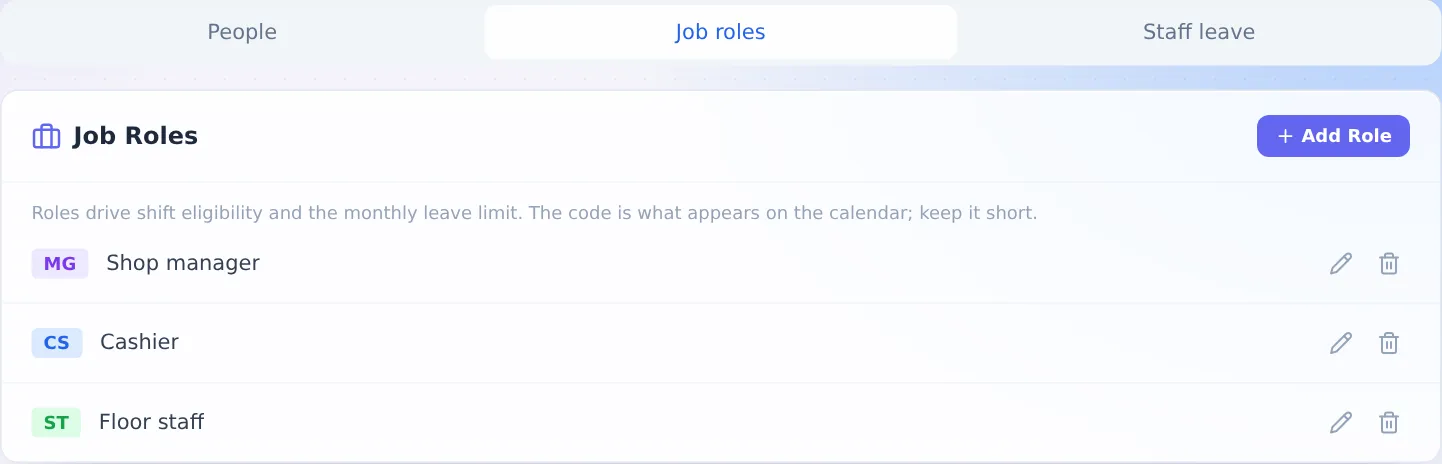
Press Add Role and set a short code (such as CS), a name and a colour. The colour is what you see on the roster. Change the name or colour with the pencil (the code cannot be changed). A role that still has people in it can only be deleted once they have been moved.
Manage staff › Staff leave
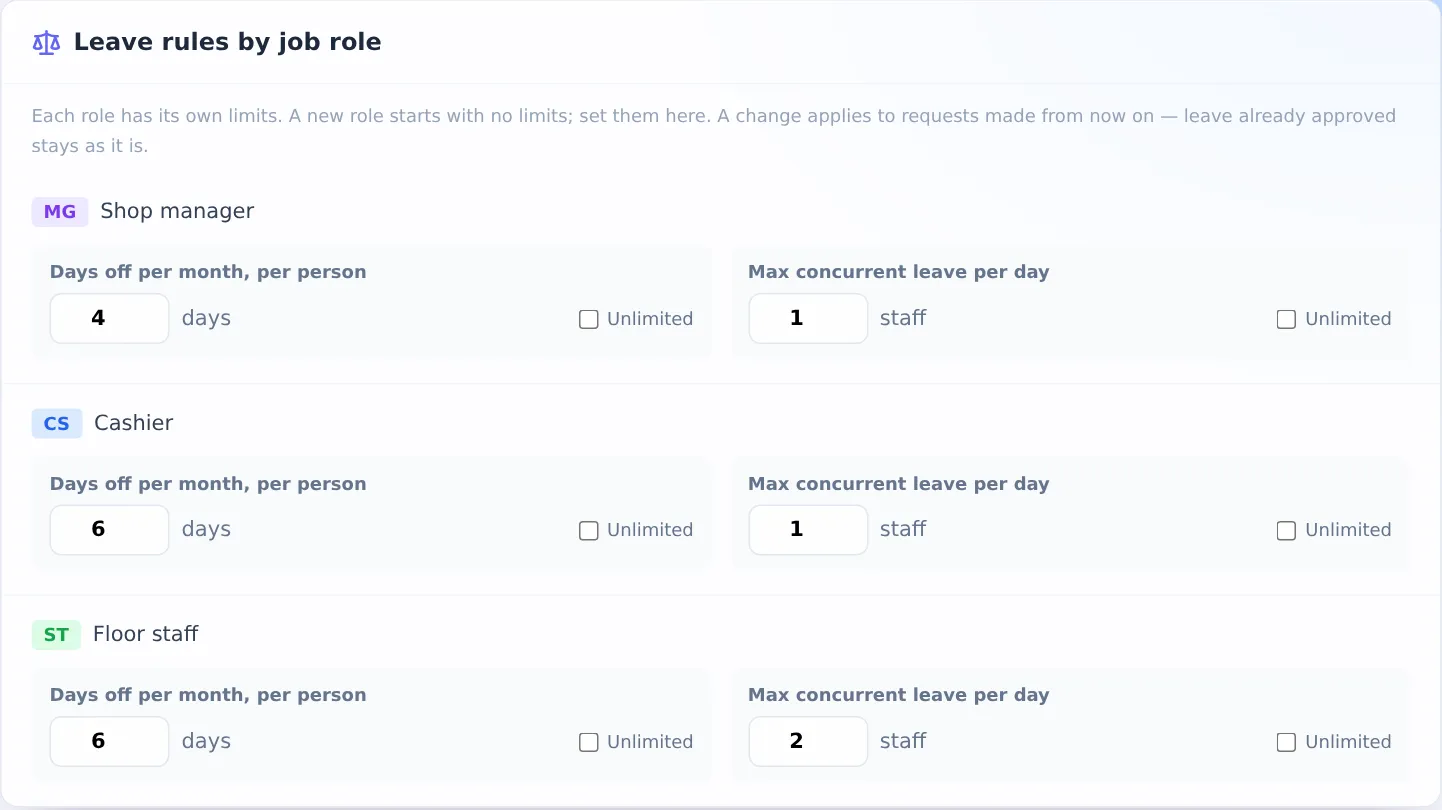
Leave rules by job role: for each role, set Days off per month, per person and Max concurrent leave per day, or tick "Unlimited". Type a number and click elsewhere; it saves by itself. A change applies to requests from now on; leave already approved stays as it is.
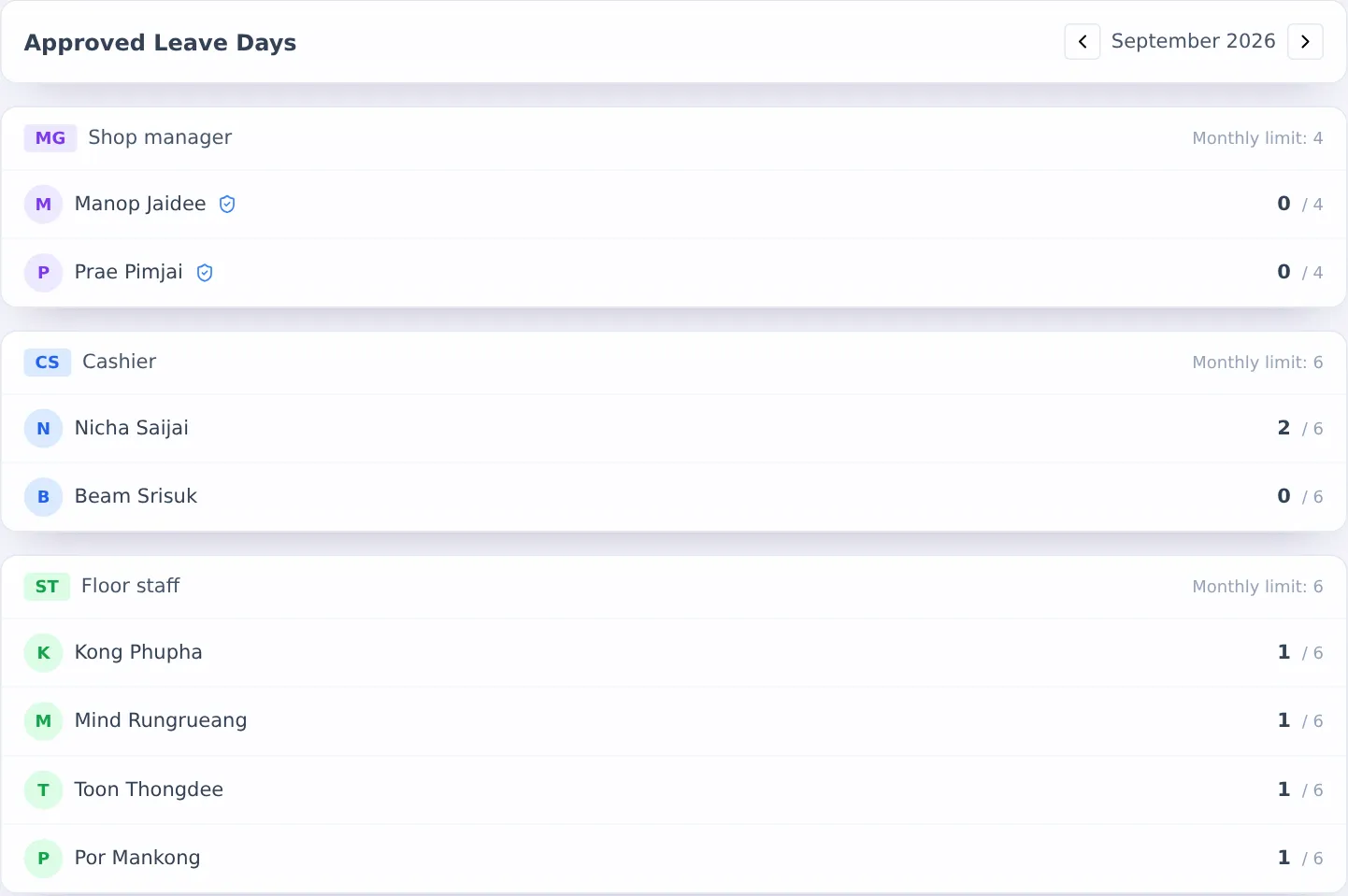
Approved Leave Days: a monthly summary of how many days each person has taken, against their role's quota.
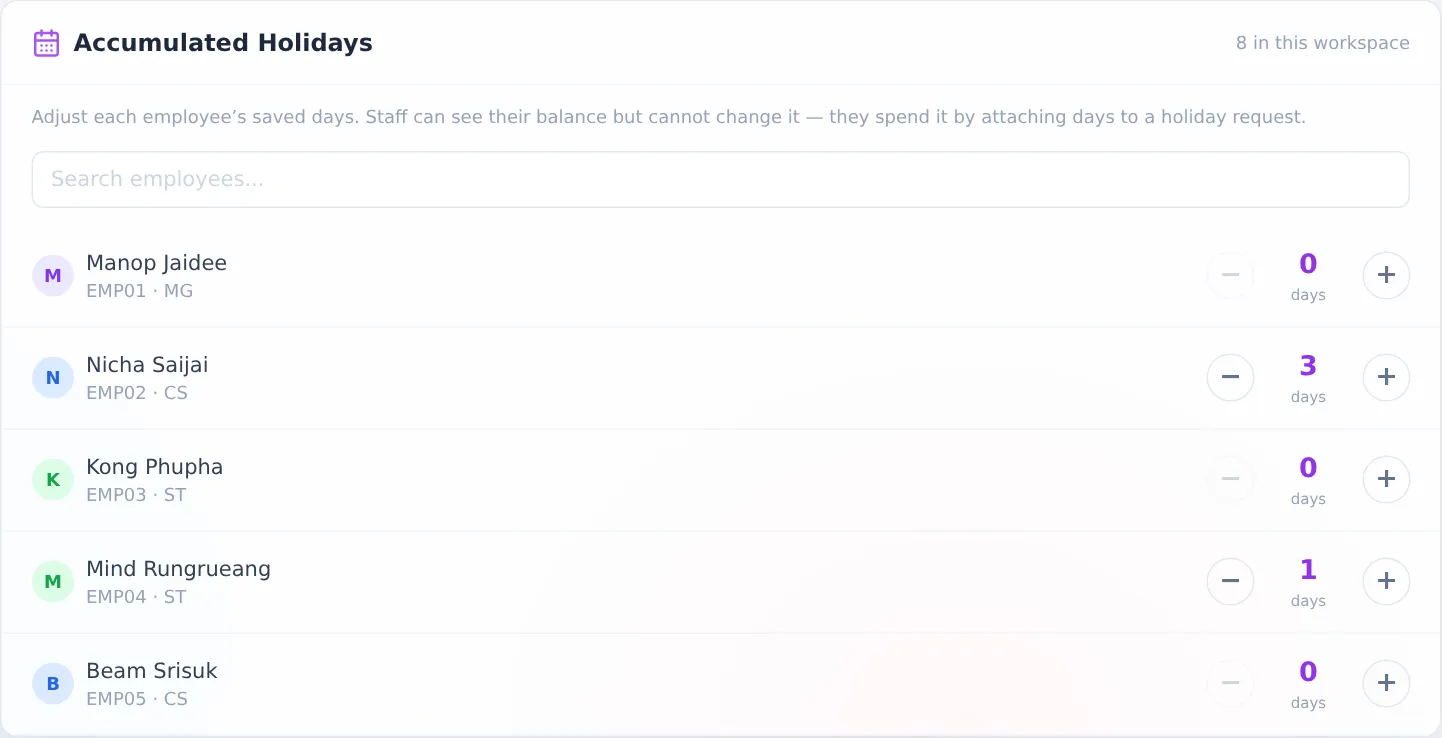
Accumulated Holidays: adjust each person's saved days with the + and − buttons. They see the new balance straight away.
Shop setup › Branches & hours
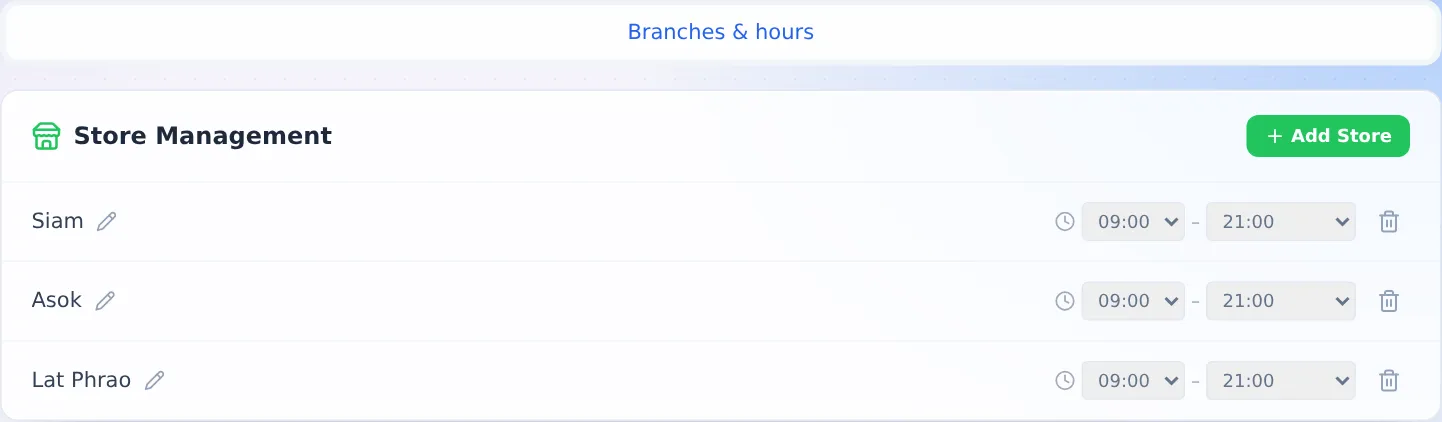
- Press Add Store. A new branch starts at 09:00–21:00; change it with the time boxes.
- For a shop that closes after midnight, pick a closing time marked (+1). A 24-hour shop opens 00:00 and closes 00:00 (+1).
- Rename a branch with the pencil (its shifts follow). Delete a branch with the bin.
- Vela uses these hours to tell you which days are not fully covered.
4. For staff
Logging in
- Open the shop's link your admin gave you, such as yourshop.velaroster.com
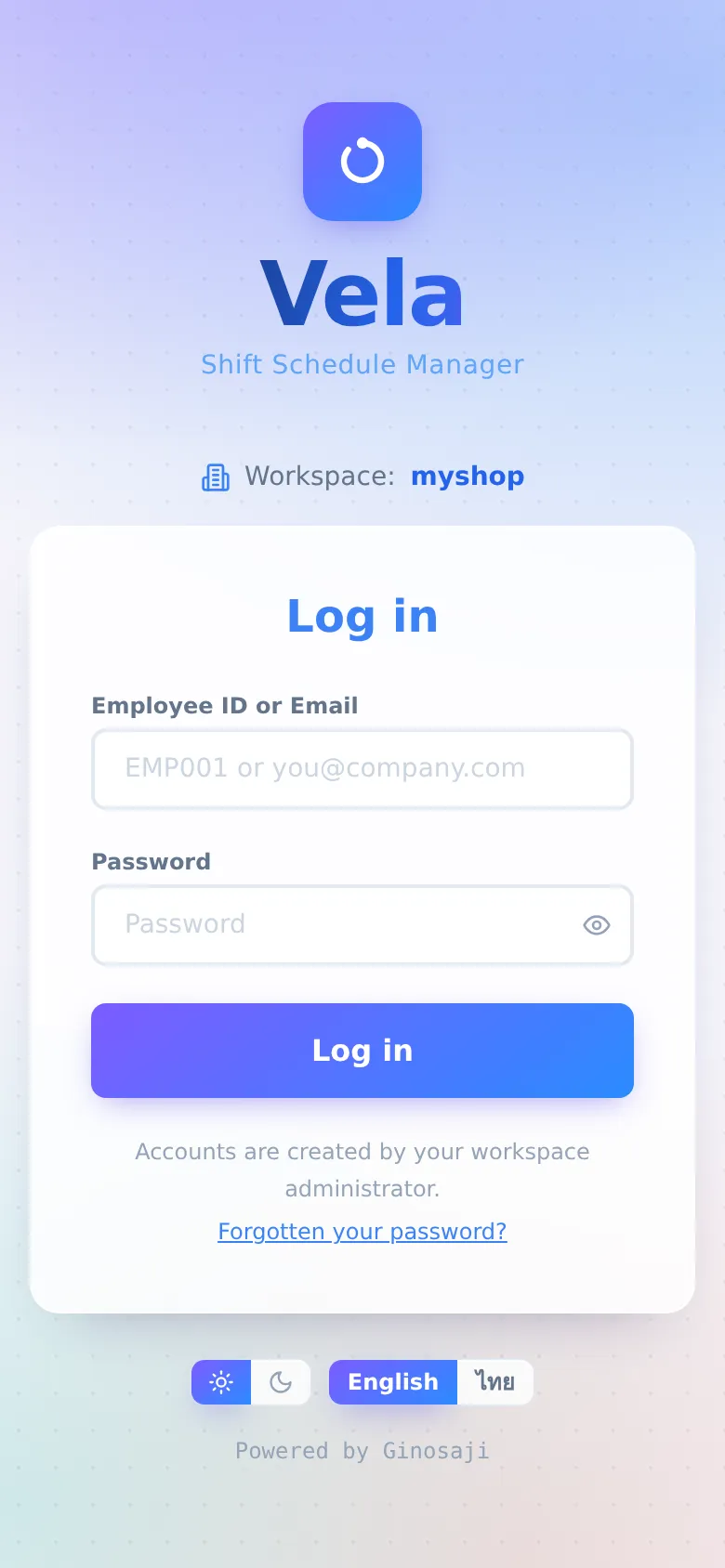
- Enter your Employee ID or Email and your password. Only a shop admin can create accounts; you cannot sign yourself up.
- Forgotten your password? Press it and enter your account's email. Vela sends a link to set a new one (it works once, within an hour). If you only remember your employee ID, ask your admin to reset it for you.
- After several wrong passwords, Vela makes you wait before trying again. The screen says how many minutes.
The menu
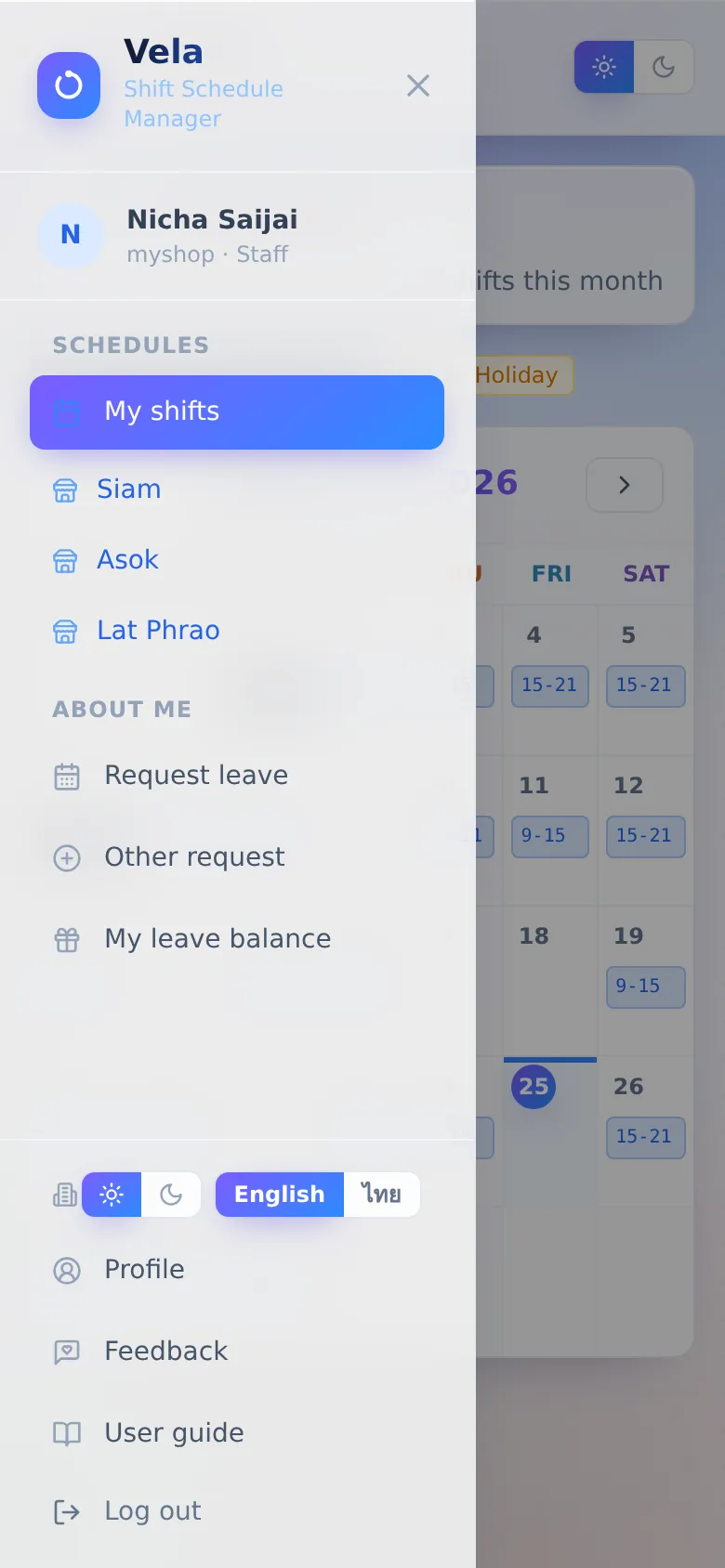
On a phone, tap ☰ at the top left to open the menu. On a computer the menu is always on the left.
- Schedules
- My shifts, and each branch's schedule
- About me
- Request leave, Other request, My leave balance
- At the bottom
- Light/dark, language, Profile, Feedback, User guide and Log out
Admins also see a Management heading (see section 3).
My shifts
Schedules › My shifts
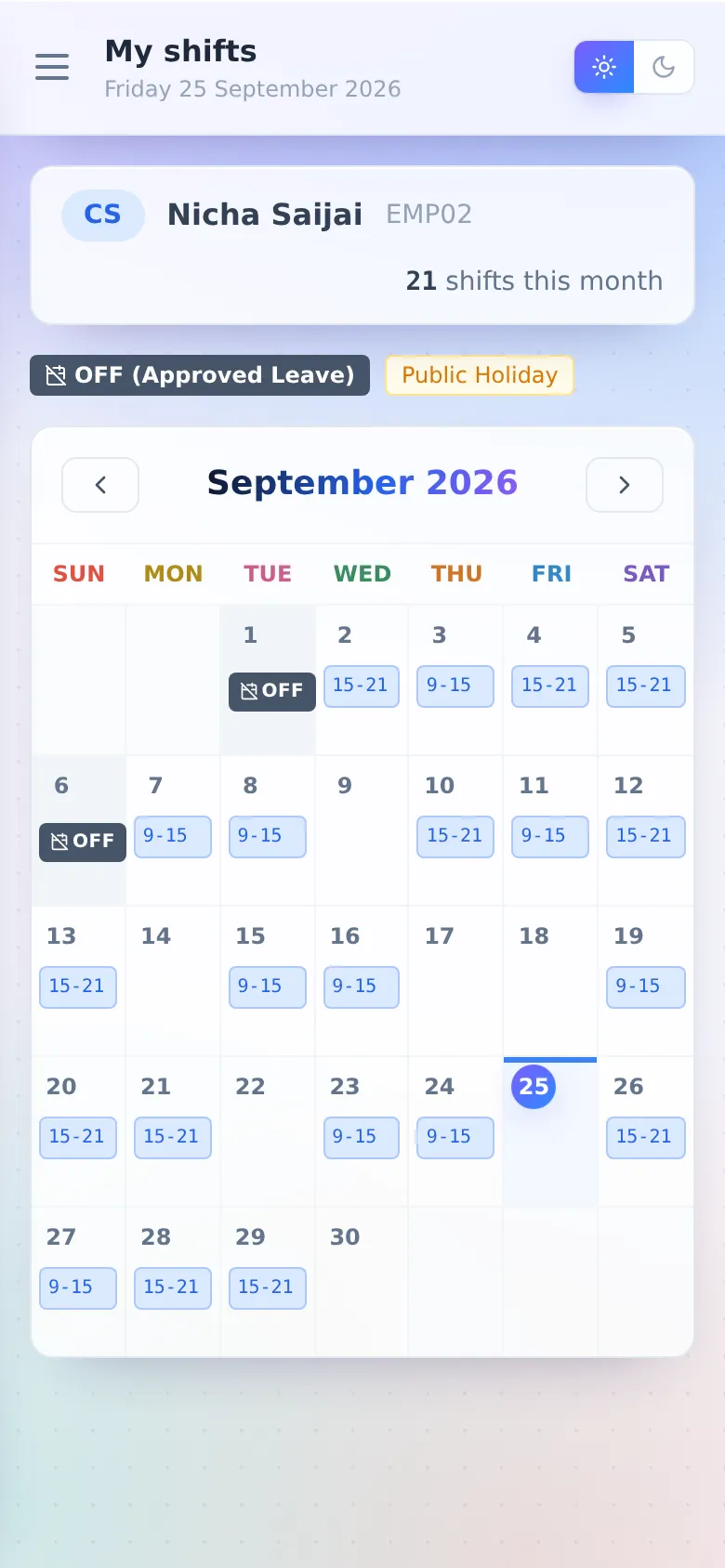
- Your shifts for the whole month. The top shows how many shifts you have this month.
- Days on approved leave are marked OFF, and public holidays have their own colour.
- Tap a day to see which branch and which hours.
- Move between months with the arrows beside the month name.
- Once you have opened this page with internet, this month's shifts open even with no signal.
A branch's schedule
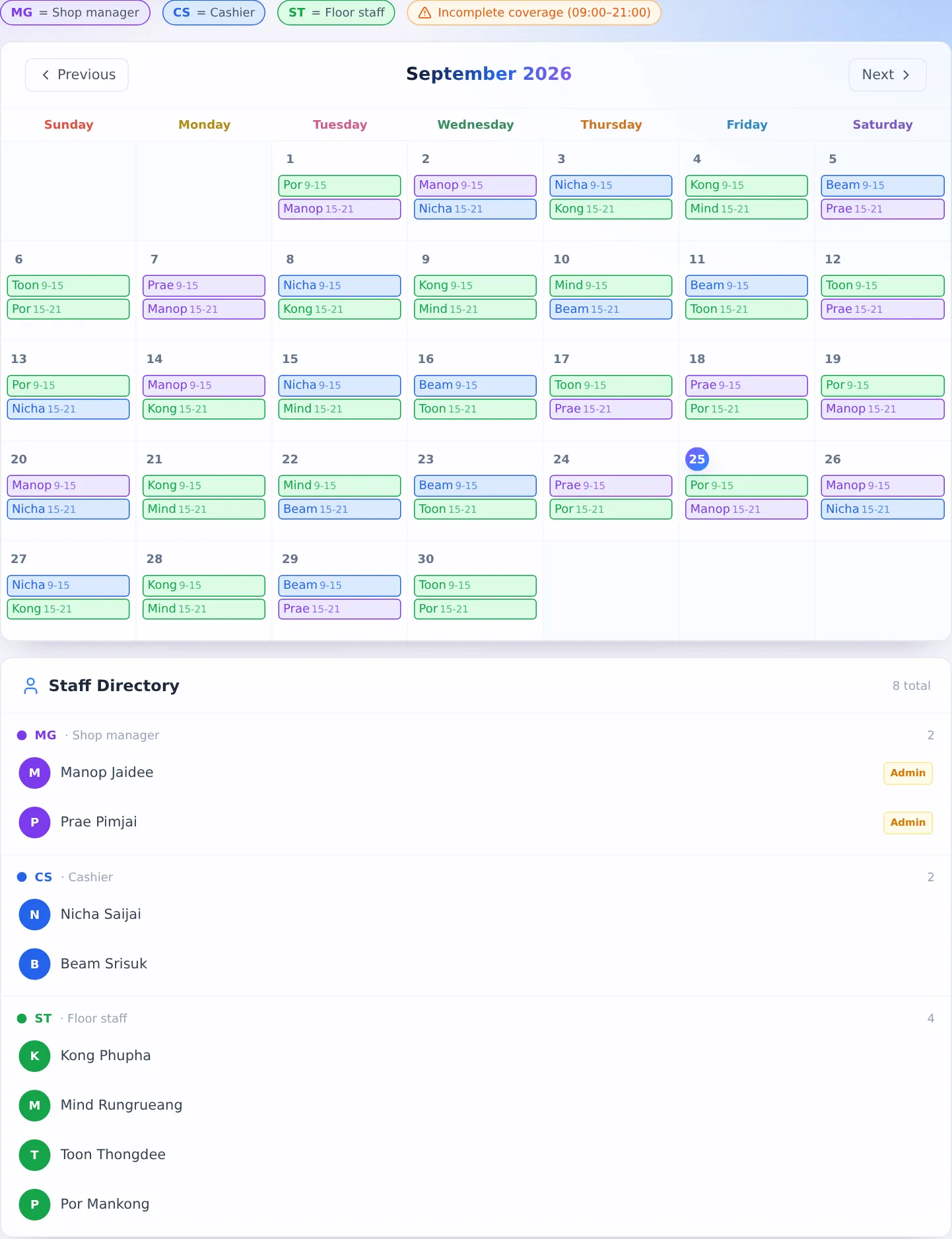
Schedules › branch name shows who is on at that branch on each day. The coloured labels are job roles, and an orange icon marks a day whose shifts do not cover opening hours. Tap a day for the full detail. Below is the staff list by role; tap a name to see that person's details.
Request leave
About me › Request leave
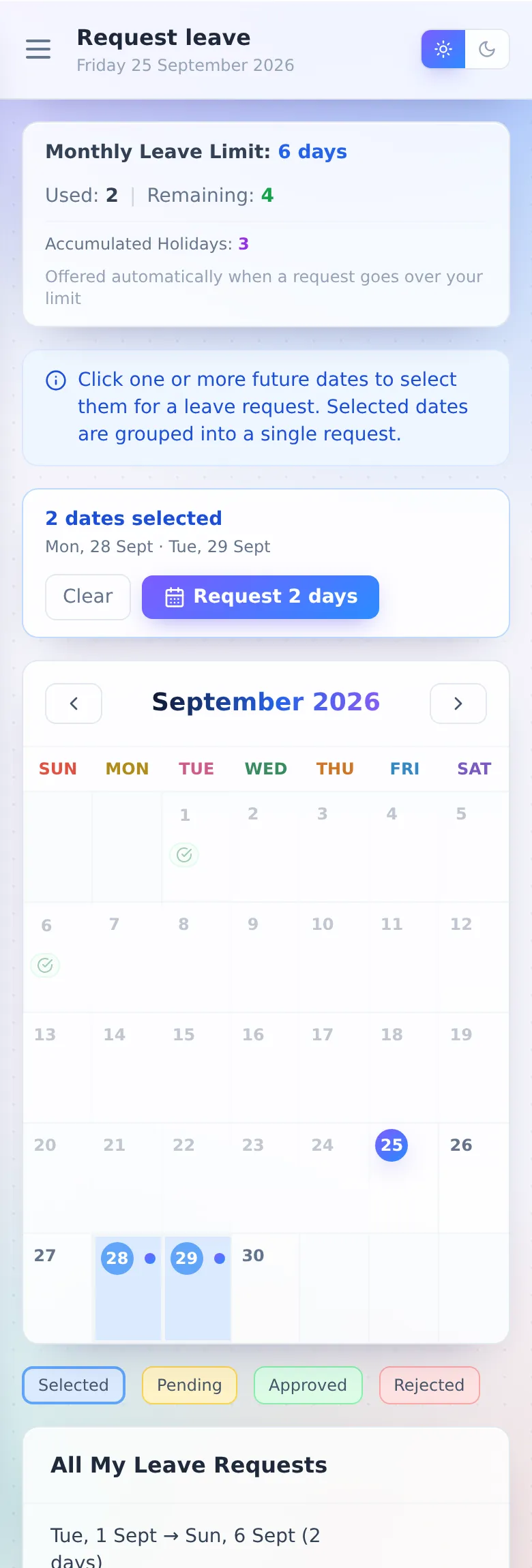
- Tap the days you want off on the calendar. You can pick several (future days only); picked days turn blue.
- Press Request N days in the "dates selected" box (press Clear to start over). A confirmation window opens; add a reason if you like, then press Submit N Days.
- Wait for an admin to approve. Until then it shows Pending, and you can press Cancel Request yourself.
- The top box shows your Monthly Leave Limit, how much you have used, and what is left.
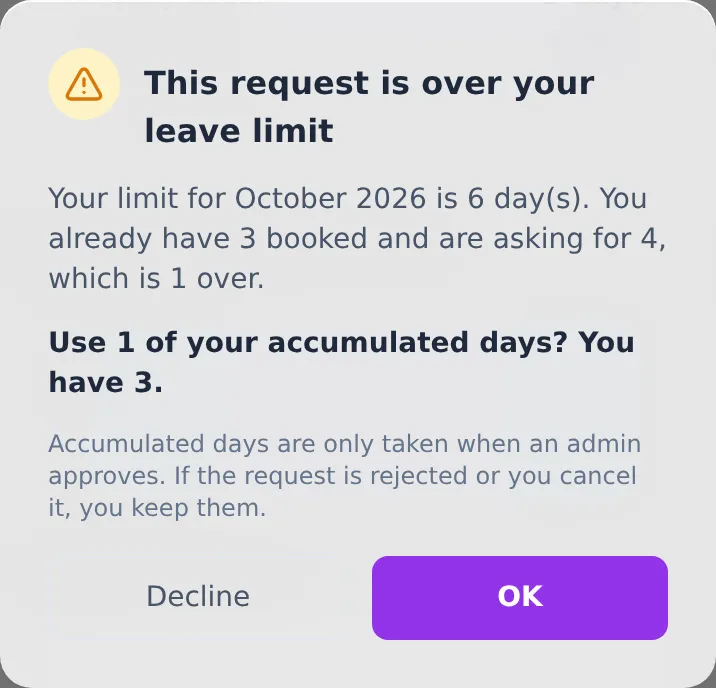
- Going over your quota: when you submit, Vela says how many days over you are and asks whether to use accumulated days. Press OK to use them, or Decline to go back and change your dates. If your balance is not enough, it tells you how many days to remove. Saved days are taken when the admin approves, not when you send; if the request is rejected or cancelled, you keep them.
- Calendar colours: blue = selected · yellow = pending · green = approved · red = rejected
- Below is All My Leave Requests.
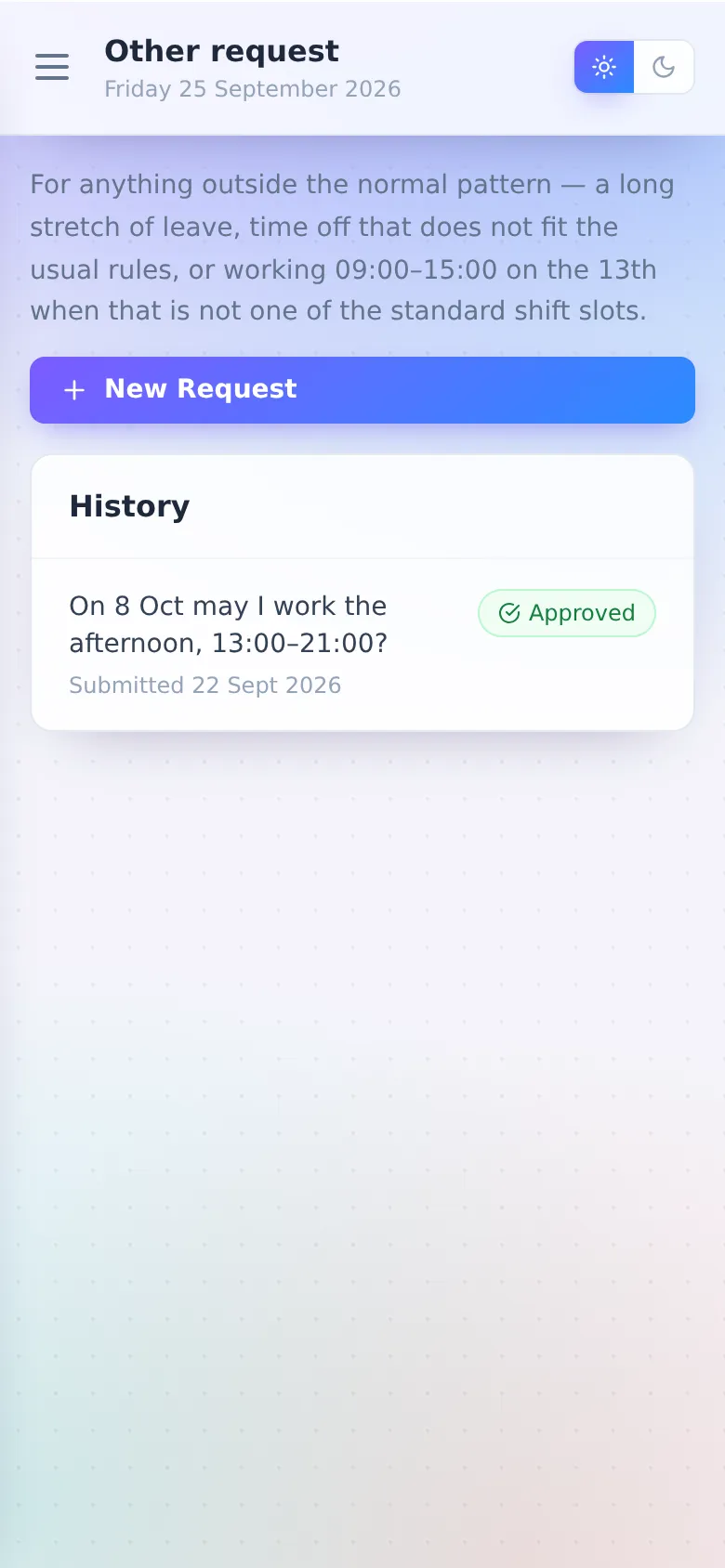
Other request
About me › Other request
For anything outside the usual pattern: working different hours, swapping a shift with a colleague, covering for someone, or a long stretch of leave.
- Press New Request
- Write out the details, such as "On the 13th may I work 09:00–15:00?"
- Your admin reads it and approves or rejects it. See the result under History.
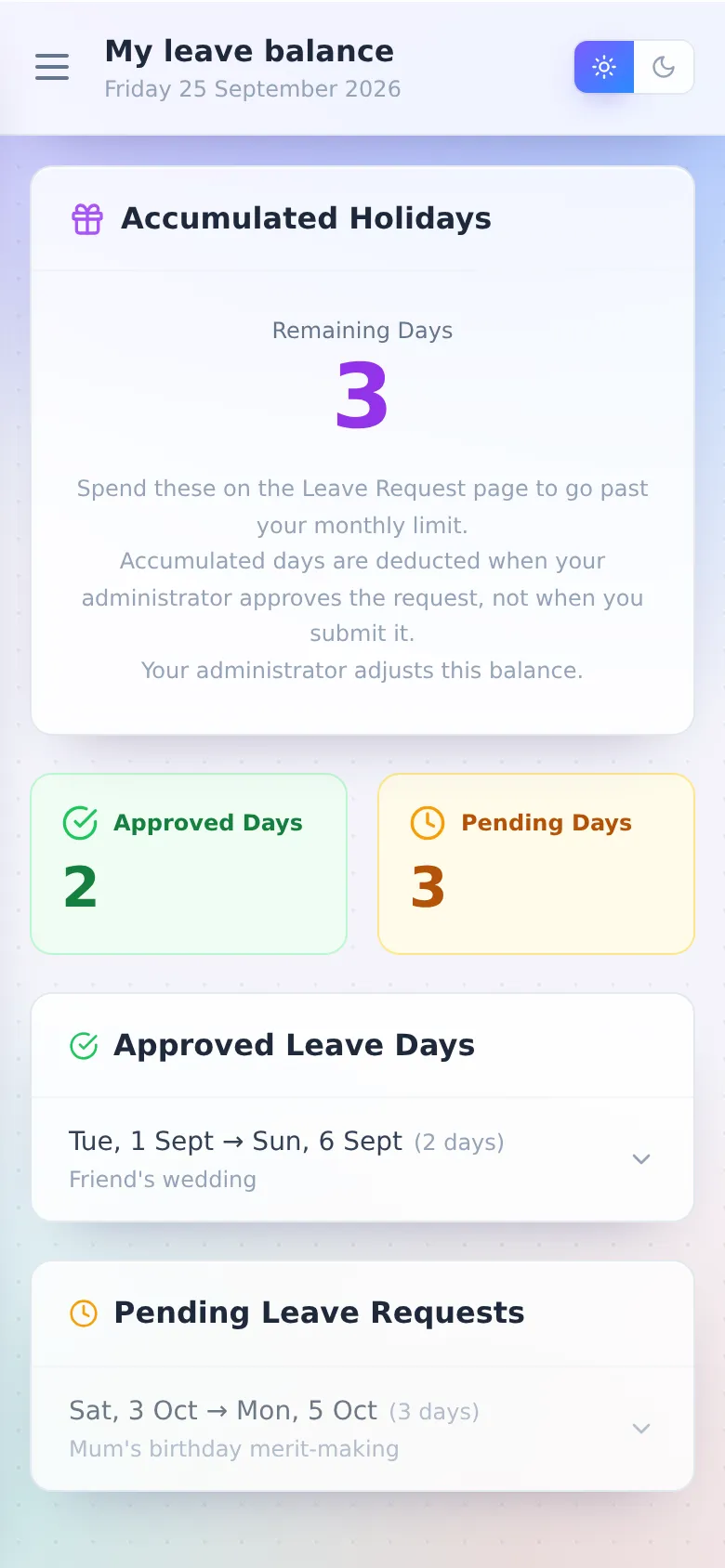
My leave balance
About me › My leave balance
- Remaining Days you can use to go past your quota
- How many Approved Days and Pending Days you have
- Your approved and pending leave. Tap one to see the dates.
- Your admin sets the saved balance. If it looks wrong, ask them.
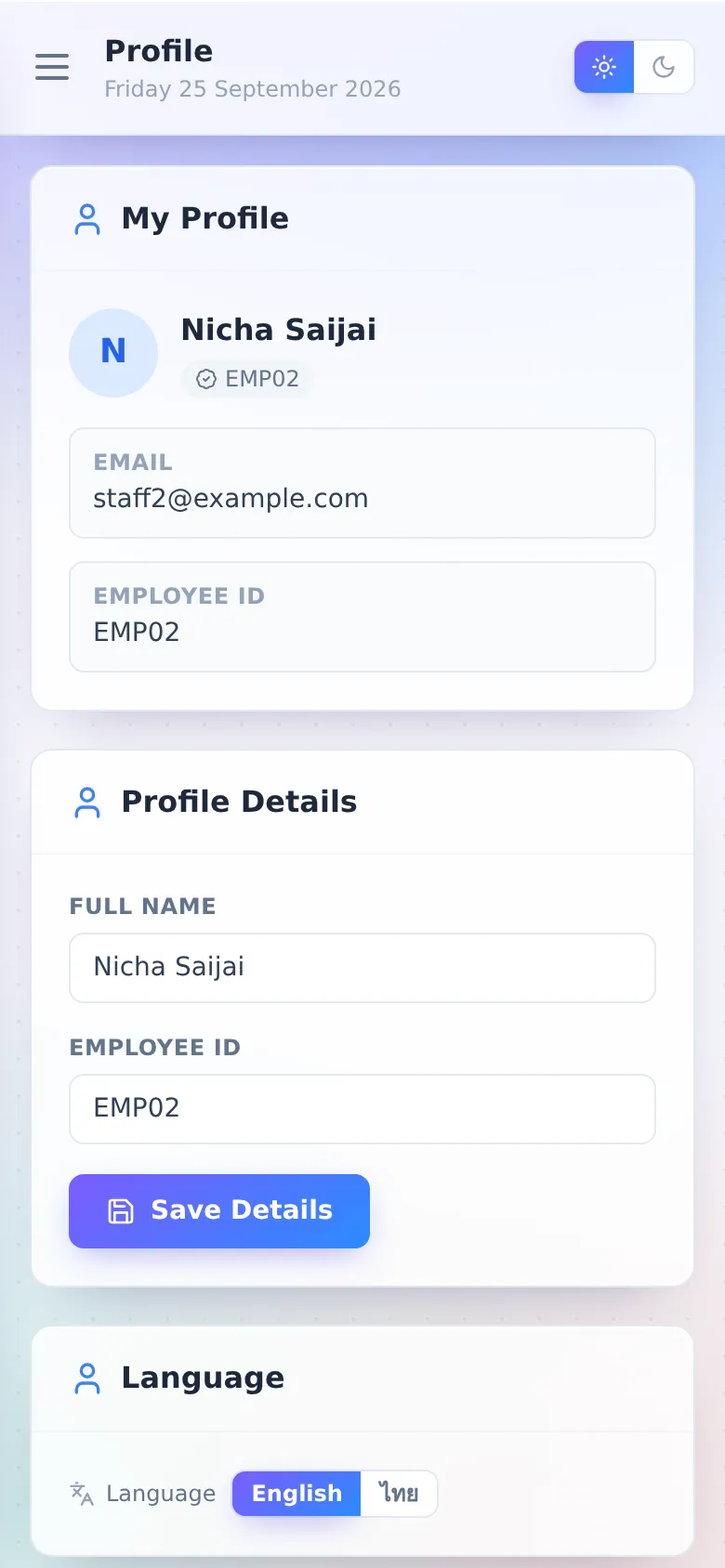
Profile, language and look
Profile (at the bottom of the menu)
- Change your full name, then press Save Details
- Choose Thai or English
- Change Password (at least 8 characters)
- Light or dark: the sun/moon buttons in the menu
- Update Email you log in with: enter the new address, then press the confirmation links sent to both the old and the new address. The email changes once both are confirmed. Your employee ID still logs you in as before.
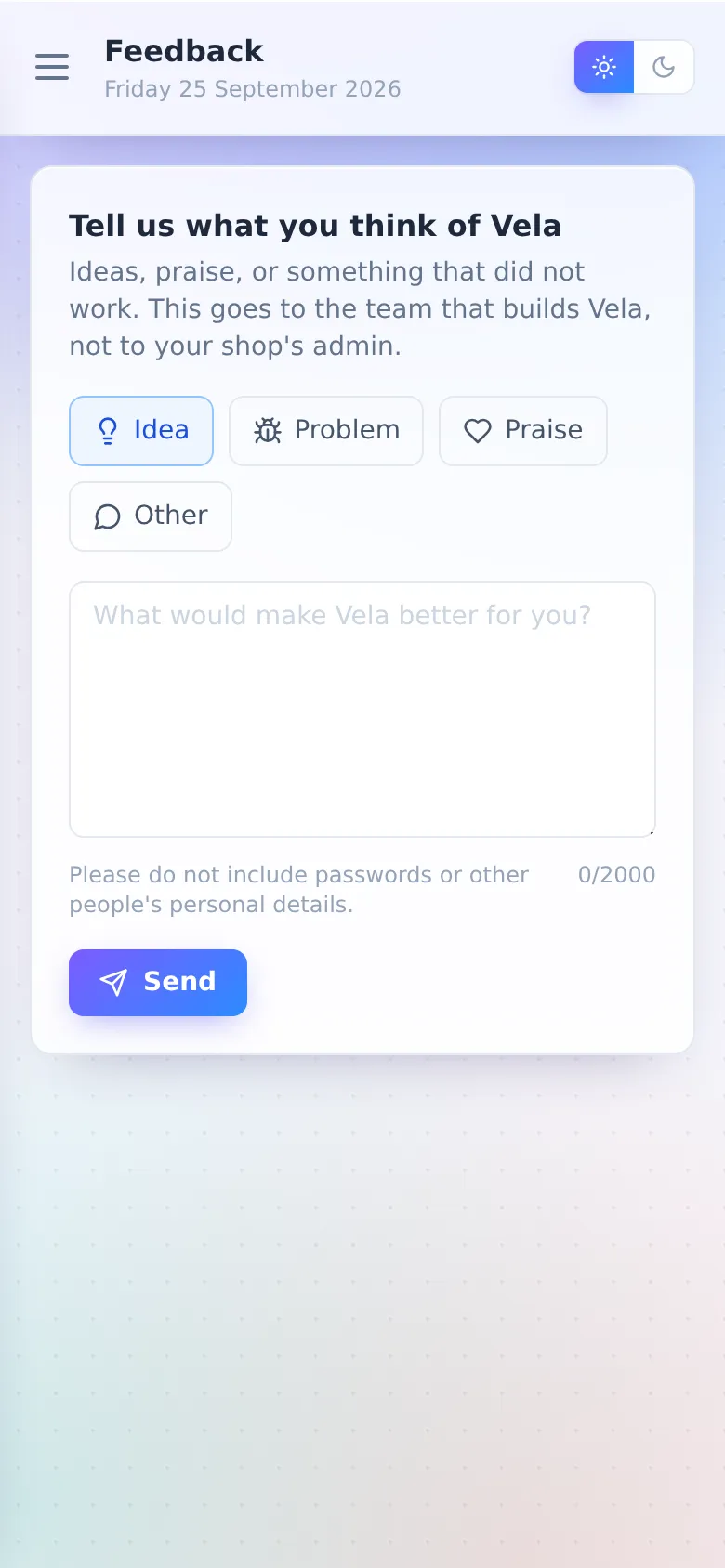
Sending feedback
Feedback (at the bottom of the menu)
An idea, a problem, or some praise: send it straight to the team that builds Vela. It does not go to your shop's admin. Please do not include passwords or other people's personal details.
5. Plans and payment
Billing (admins only)
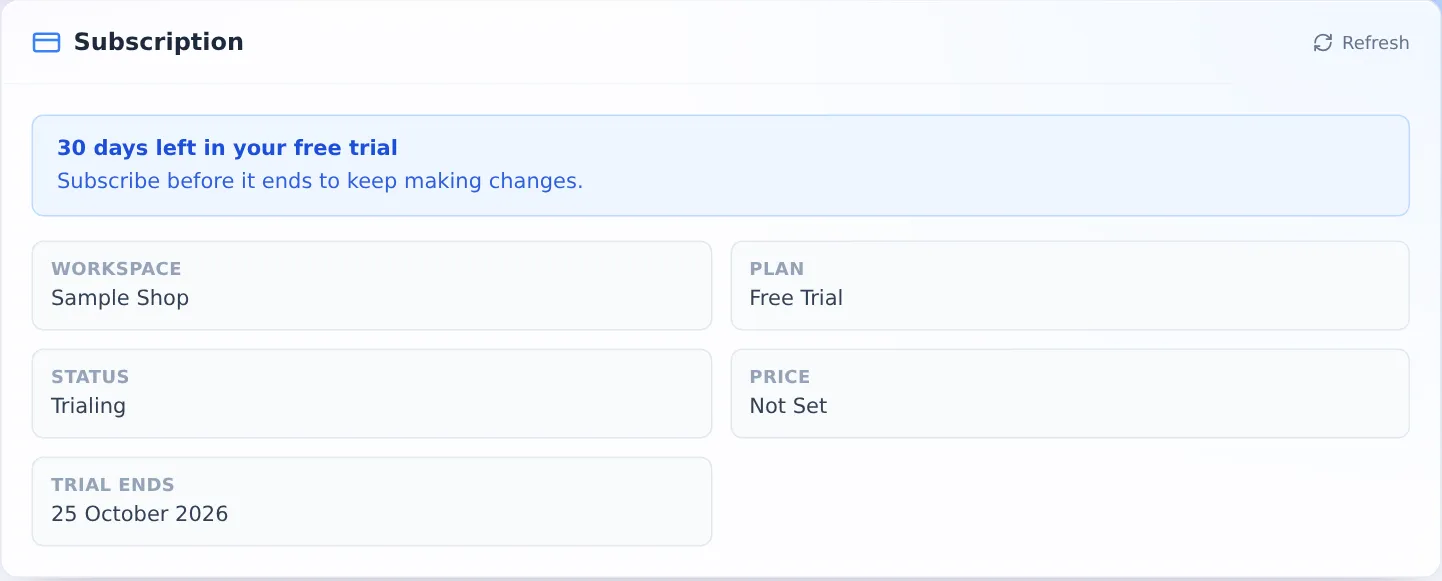
- Subscription: status, and when the trial ends or the plan renews. The price depends on the number of branches (1–5 branches ฿299/month · 6–10 branches ฿499 · 11 or more ฿899; paying yearly, you pay for 10 months and get 12).
- Branches: during the trial you can add as many branches as you like, and your plan is set by the number of branches on the day you pay. After that you can add branches up to the top of your plan. To go past it, transfer the higher plan's price for your next period and use Tell us you have paid; you can add branches as soon as we confirm it, and the rest of your current period is not charged again. Removing branches is always allowed, and the next period is billed on the branches you have then.
- Billing contact: the name for receipts, the email that gets invoices, tax ID and address.
- Paying: transfer or scan the PromptPay code shown on the page, then fill in Tell us you have paid (date, amount, reference). We confirm it, usually within one working day.
- Invoices and receipts: view and print them from the same page. Renewal invoices are issued 7 days ahead and sent by email. The documents are receipts, not tax invoices.
If the plan lapses, nothing is deleted. Everyone can still log in and see the roster, leave history and staff details, but rostering, approving leave, adding staff and sending requests are paused. Pay, and everything works again straight away.
6. Tips
- Install it as an app on phones and computers — see section 2
- Checking shifts with no signal: once you have opened "My shifts" with internet, your device keeps this month's shifts. With no signal it still opens, with a yellow bar saying when the data is from. Sending requests has to wait for internet. The saved copy is deleted when you log out.
- Pull down to refresh: on a phone, scroll to the very top and pull down until it says "Release to refresh", then let go.
- Tap any picture on this page to see it full size.
7. FAQ
Can staff see other people's details?
Staff see each branch's roster, but leave requests, saved days and personal details only for themselves. Each shop's data is separated in the database itself; other shops cannot see it.
I installed the app on my iPhone and have to log in again
That is normal. The installed app keeps its login separately from Safari. Log in once in the app and it remembers you.
Contacting the Vela team
Use Feedback in the app, or email ginosaji363117@gmail.com